

How to Save and Open Files in Microsoft Excel – A Complete Guide for Beginners
Imagine spending hours creating a spreadsheet and, due to a simple oversight, losing all your work. Unfortunately, this happens to many people who are just starting to use Excel. Knowing how to correctly save and open files is one of the most important skills for any user, whether beginner or experienced. In this article, you will learn about the main Excel file formats, how to save a spreadsheet, open existing files, and adopt best practices to protect your data.
EXCEL BÁSICO
OkanoDev
7/11/20264 min read


Why is saving a spreadsheet so important?
When you create or edit a spreadsheet, all changes are temporarily stored in the computer's memory. If there is a power outage, if the computer unexpectedly shuts down, or if the program closes without saving, those changes could be lost.
Saving the file ensures that all the work you've done is securely stored and can be accessed again whenever needed.
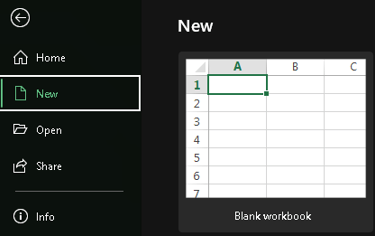
How to create a new workbook
Before saving a file, you need to create a new spreadsheet.
In Excel, click on:
File → New → Blank Workbook
A new spreadsheet will open and will be ready to receive your information
How to save a file for the first time
After creating or editing your spreadsheet:
Click on File.
Select Save As.
Choose the folder where you want to store the file.
Type a name for the spreadsheet.
Choose the desired format.
Click on Save.
Done! Your file has been saved.


Shortcut to save quickly
One of the fastest ways to save a spreadsheet is by using the keyboard.
Windows
Ctrl + S
Mac
Command (⌘) + S
Whenever you make important changes, use this shortcut to avoid data loss.
Tip: Get into the habit of pressing Ctrl + S regularly while working.
How to open an existing file
To open a spreadsheet that has already been saved:
Open Microsoft Excel.
Click on File.
Select Open.
Locate the folder where the file is saved.
Double-click on the spreadsheet.
Another option is to open it directly through Windows File Explorer by double-clicking the file.


Understanding the main file formats
Excel allows you to save files in different formats. Each one has a specific purpose.
.xlsx (Excel Workbook)
This is the default format used in current versions of Microsoft Excel.
Ideal for:
Regular spreadsheets;
Reports;
Financial trackers;
Dashboards;
Shared spreadsheets.
It is the recommended format for most users.
.xls
This was the format used in older versions of Excel (up to 2003).
It can still be opened by current versions, but it has some limitations regarding modern features.
.xlsm
This format allows you to store macros and VBA code.
Use it when your spreadsheet contains automations.
Note: If a spreadsheet with macros is saved as .xlsx, the macros will be removed.
.csv
CSV stands for Comma-Separated Values.
It is widely used for:
Data import;
Exporting data between systems;
Databases;
Management software.
In this format, only the text and data are saved. Formulas, charts, and formatting are not preserved.
Excel also allows you to save a spreadsheet in PDF format.
This format is ideal for:
Printing;
Sharing;
Final reports;
Quotes/Budgets.
PDF maintains the document's appearance but does not allow editing like a spreadsheet.

How to choose a good file name
An organized name makes it much easier to find your documents.
Avoid names like:
Book1 New Document Test
Prefer descriptive names, for example:
Financial_Tracker_2026.xlsx
Inventory_July.xlsx
Sales_Report_June.xlsx
Customer_Registration.xlsx
The clearer the name, the easier it will be to locate the file in the future.
Organizing your spreadsheets into folders
Creating a folder structure also helps with organization.
Example:
Documents
|
└── Excel
├── Finance
├── Inventory
├── Customers
├── Production
└── Reports
This organization prevents important files from being scattered across the computer.
AutoSave
If you use Microsoft 365 with files stored on OneDrive, Excel offers the AutoSave feature.
Whenever you make a change, it is automatically saved to the cloud.
This significantly reduces the risk of data loss.
Recovering unsaved files
Even if you forget to save a spreadsheet, Excel can recover part of your work.
When opening the program after an unexpected close, the Document Recovery pane usually appears.
In it, you can restore versions automatically saved by Excel.
Although this feature is very useful, it does not replace the habit of saving frequently.
Common beginner mistakes
Avoid these mistakes:
❌ Not saving while working.
❌ Modifying important files without creating a copy.
❌ Saving in the wrong format.
❌ Not organizing files into folders.
❌ Using generic names.
Small precautions make a big difference in your daily routine.
Best practices
Whenever you create a new spreadsheet:
✓ Save the file immediately.
✓ Use clear names.
✓ Organize your files into folders.
✓ Make backups.
✓ Use the .xlsx format for regular spreadsheets.
✓ Press Ctrl + S regularly.
These habits make your work much more secure and organized.
Practical exercise
📝 Practice Now
Create a new spreadsheet containing a short shopping list.
Example:
Product Quantity Value
Rice 2 25.00
Beans 3 8.50
Milk 6 5.20
Now:
Save the file with the name Shopping_List.xlsx.
Close Excel.
Open the file again.
Make a change.
Save using the shortcut Ctrl + S.
This exercise will help you practice the entire process of creating, saving, and opening a spreadsheet.
Summary
In this article, you learned:
What a workbook is.
How to save a file for the first time.
How to open an existing spreadsheet.
The main Excel file formats.
How to organize your documents.
How to prevent data loss.
Best practices to keep your spreadsheets secure.
Saving and opening files correctly is a fundamental skill for any Microsoft Excel user. More than just a simple task, this process ensures the security of your information and makes organizing your work much easier.
Getting into the habit of saving frequently, using clear names, and choosing the appropriate format will prevent many problems in the future.
With these practices, you will be prepared to work with your spreadsheets in a much more professional and secure way.
💡 BaRD Nexus Tip
Before starting any important project in Excel, save the file right after creating it. This simple habit prevents data loss and allows you to work with greater peace of mind. As your spreadsheets grow, maintaining good file and folder organization will be just as important as mastering Excel formulas and functions.