

Rows, Columns, and Cells: The Structure of Microsoft Excel
If you want to learn Excel, the first concept you need to master is the structure of a spreadsheet. Everything we do inside Microsoft Excel happens in rows, columns, and cells. This is where we store information, perform calculations, create charts, and build reports. Understanding these three elements is essential to using Excel with confidence and unlocking the tool's full potential. In this article, you will learn in detail how each one works and see practical examples to apply right away.
EXCEL BÁSICO
OkanoDev
7/9/20264 min read


What are Rows?
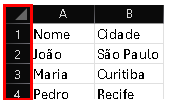
Rows are the horizontal spaces in a spreadsheet.
They run across the entire width of the screen and are identified by numbers.
Example:
1, 2, 3, 4, 5, 6...
Each row is used to record a set of related information.
Imagine a customer list:
Row Name City
2 João São Paulo
3 Maria Curitiba
4 Pedro Recife
Each row represents a different customer.
This organization makes it easier to read and analyze data.
What are Columns?
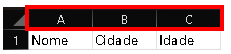
Columns are the vertical spaces in a spreadsheet.
They are identified by letters.
Example:
A, B, C, D, E, F...
Each column typically represents a specific type of information.
Example:
A B C
Name City Age
In this case:
Column A → Name
Column B → City
Column C → Age
This separation keeps the data organized and makes it easier to use filters, formulas, and charts.
What are Cells?
A cell is the intersection point between a row and a column.
It is the smallest space in a spreadsheet and where we enter all the information.
Each cell has a unique address.
Example:
Column Row Address
A 1 A1
B 5 B5
C 10 C10
D 25 D25
Whenever you click on a cell, it will be highlighted with a border.
This is where you can type text, numbers, dates, formulas, and much more.
How does a cell address work?
A cell address is formed by combining:
Column + Row
For example:
A1
B2
C15
F20
AA100
If someone says:
"Type the value in cell C8"
It means:
Column C
Row 8
This system allows you to quickly locate any piece of information in the spreadsheet.
What can be entered into a cell?
A cell can store various types of data.
Among them:
Text
Numbers
Dates
Times
Currency values
Formulas
Functions
Links
Images
Comments
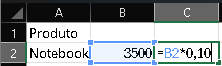
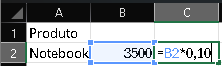
Example:
Cell Content
A1 Produto
A2 Notebook
B2 3500
C2 =B2*0.10
Excel automatically interprets the type of information entered.
How many rows and columns are there in Excel?
The most recent versions of Microsoft Excel have an enormous capacity.
Each spreadsheet contains exactly:
1,048,576 rows
16,384 columns
The columns go from: A B C ... Z AA AB AC ... XFD
This allows you to work with large volumes of data.
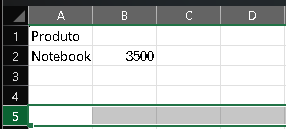
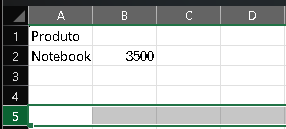
How to select an entire row?
Click on the row number.
Example: Click on number 5.
The entire row will be selected.
You will be able to:
Change the color;
Delete;
Insert;
Copy;
Move.
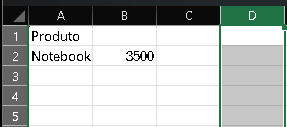
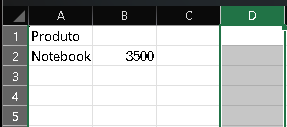
How to select an entire column?
Click on the column letter.
Example: Click on C.
The entire column will be selected.
This action is very useful for applying formatting to all data within the same category.
How to select multiple cells?
There are several ways.
Simple selection
Click on a cell.
Continuous selection
Click and drag the mouse.
Selection with Shift
Click on the first cell.
Hold Shift.
Click on the last cell.
All cells within the range will be selected.
Selection with Ctrl
Hold Ctrl.
Click on different cells.
Ideal for selecting separate areas.
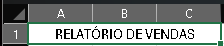
Merge Cells: When to use it?
Excel allows you to combine two or more cells.
This feature is called Merge Cells.
It is widely used to create titles.
Example: SALES REPORT spanning multiple columns.
Note: Use this feature with caution, as merged cells can make it difficult to use filters and formulas.
Inserting and deleting rows and columns
You can add new spaces whenever necessary.
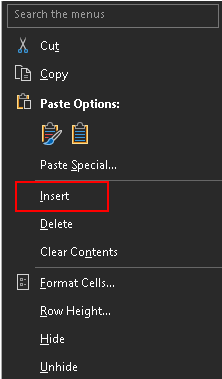
Insert a row
Right-click on the row number.
Select: Insert
Insert a column
Right-click on the column letter.
Choose: Insert
Excel will automatically shift the existing data.
Common beginner mistakes
When creating a spreadsheet, many users make mistakes that hinder data organization.
Avoid:
❌ Mixing different types of information in the same column.
❌ Leaving multiple blank rows.
❌ Merging cells unnecessarily.
❌ Inserting titles in the middle of the table.
❌ Creating columns without headers/identification.
An organized structure makes future filters, charts, and analysis much easier.
Best practices
To create professional spreadsheets:
✓ Use one column for each type of information.
✓ Use one row for each record.
✓ Name all columns.
✓ Avoid empty cells in the middle of the table.
✓ Use tables whenever possible.
✓ Maintain an organizational standard.
These habits make your spreadsheets easier to maintain and share.
Practical exercise
📝 Practice Now
Create a new spreadsheet containing the following columns:
Name | Age | City | Profession
Add at least five records.
Then:
Adjust the width of the columns.
Apply bold formatting to the header.
Center the titles.
Convert the data into a Table.
Save the file with the name Customer_Registration.xlsx.
This exercise will help you understand how rows, columns, and cells work together.
Summary
Before continuing your studies, remember:
Rows are horizontal and identified by numbers.
Columns are vertical and identified by letters.
Cells are the intersection between rows and columns and store the information.
These three elements form the foundation of any spreadsheet created in Microsoft Excel.
Understanding rows, columns, and cells is one of the first steps to mastering Excel. Although they are simple concepts, they are fundamental for organizing data correctly and utilizing more advanced features, such as formulas, charts, pivot tables, and automations.
By developing the habit of structuring your spreadsheets well right from the start, you will save time, avoid errors, and build much more professional documents.